LEARN
4 min read
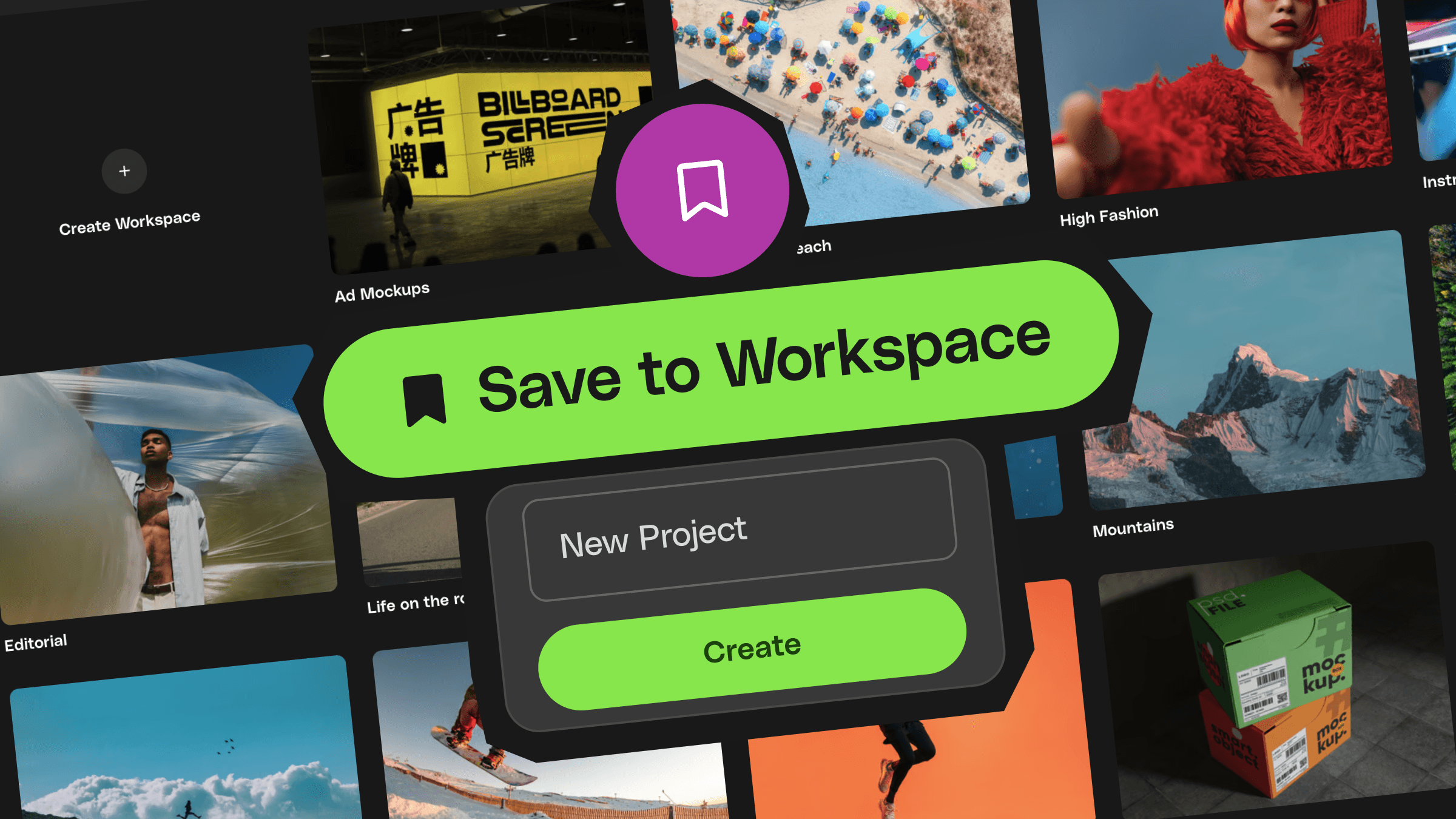
Workspaces are how you organize and collect assets across Envato. When you’re working on a project, they make it easy to save options from across the library — photos, videos, music, 3D items, templates, and more — all in one place.
They’re designed to help you stay organized and stay in the flow. Instead of stopping to download or decide straight away, you can gather ideas as you browse, then review, download, or share them later — all with just a few clicks.
As your projects grow, Workspaces grow with them. Nested Workspaces (covered below) let you add structure and hierarchy to organise clients, campaigns, and assets — without disrupting anything you've already built.
From Collections to Workspaces
If you’ve been with Envato for a while, Workspaces might look familiar. They were previously called Collections, and migrating is quick and easy.
To move your previous work into Workspaces:
Navigate to Workspaces in the left-hand sidebar
Click Migrate previous work
Select the previous work you want to migrate, then click Move
That’s it — your saved items will appear in a new Workspace, ready to use.
Creating a Workspace
There are two simple ways to create a Workspace:
Click Workspaces at the bottom of the left-hand sidebar in the Envato app, or
Click the Save icon on any asset, then select + Create a Workspace
Give your Workspace a name, and you’re ready to start collecting.
Creating a Nested Workspace
You can organize work in a hierarchy that matches how you actually think about it, up to three levels deep. For example:
Client workspace
Campaign workspace
Assets and deliverables
There are a few simple ways to create a nested workspace:
When in a specific Workspace, click Create Workspace at the top right corner in the Envato app, or
Click the Save icon on any asset, then select + next to a root workspace
Adding items to a Workspace
Saving items is quick, wherever you’re browsing:
From search results: Hover over an item, click the Save icon, then choose the Workspace or nested workspace you want
From an item page: Click the Save icon and select a Workspace or nested workspace
You can save the same item to multiple Workspaces if you need to explore different directions or client options.
Managing your Workspaces
Once you’ve created a Workspace, you can easily:
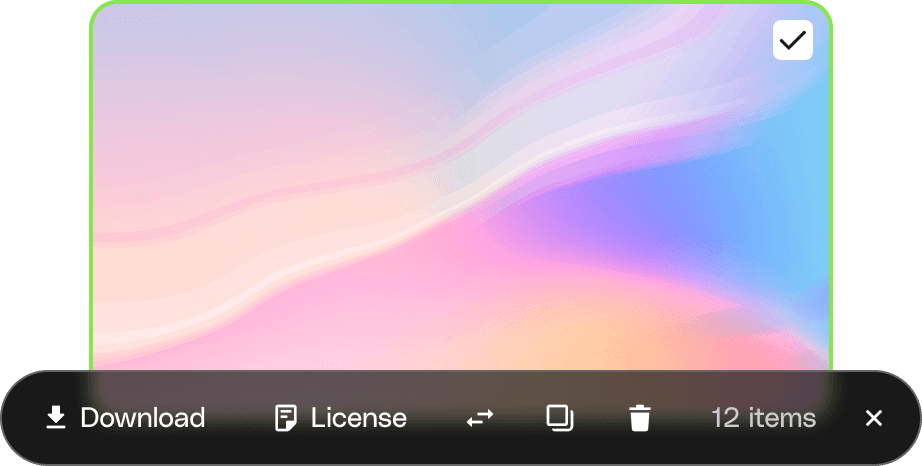
Bulk download items by selecting them and clicking Download
Move items between Workspaces using Move
Duplicate items into another Workspace using Duplicate
Copy items to another workspace using Copy
License multiple assets at once by clicking License
Everything stays flexible, so you can organize as you go — or tidy things up later.
Sharing Workspaces with others
Sharing your Workspaces is easy — even with people who don’t have an Envato account. You can share your entire Workspace, or specific nested workspaces so collaborators only see what's relevant to them.
To share a Workspace for review with a client or teammate:
Open the Workspace
Select the dropdown next to the Workspace name and click Share
Enable Allow link sharing
Copy the link and send it on
They’ll be able to view your selections without needing to sign in. And, if you're sharing a nested workspace, collaborators will only see the projects within that workspace — not your broader workspace structure.