LEARN
4 min read
Generate more consistent, on-brief videos by showing the model what you mean—not just telling it.
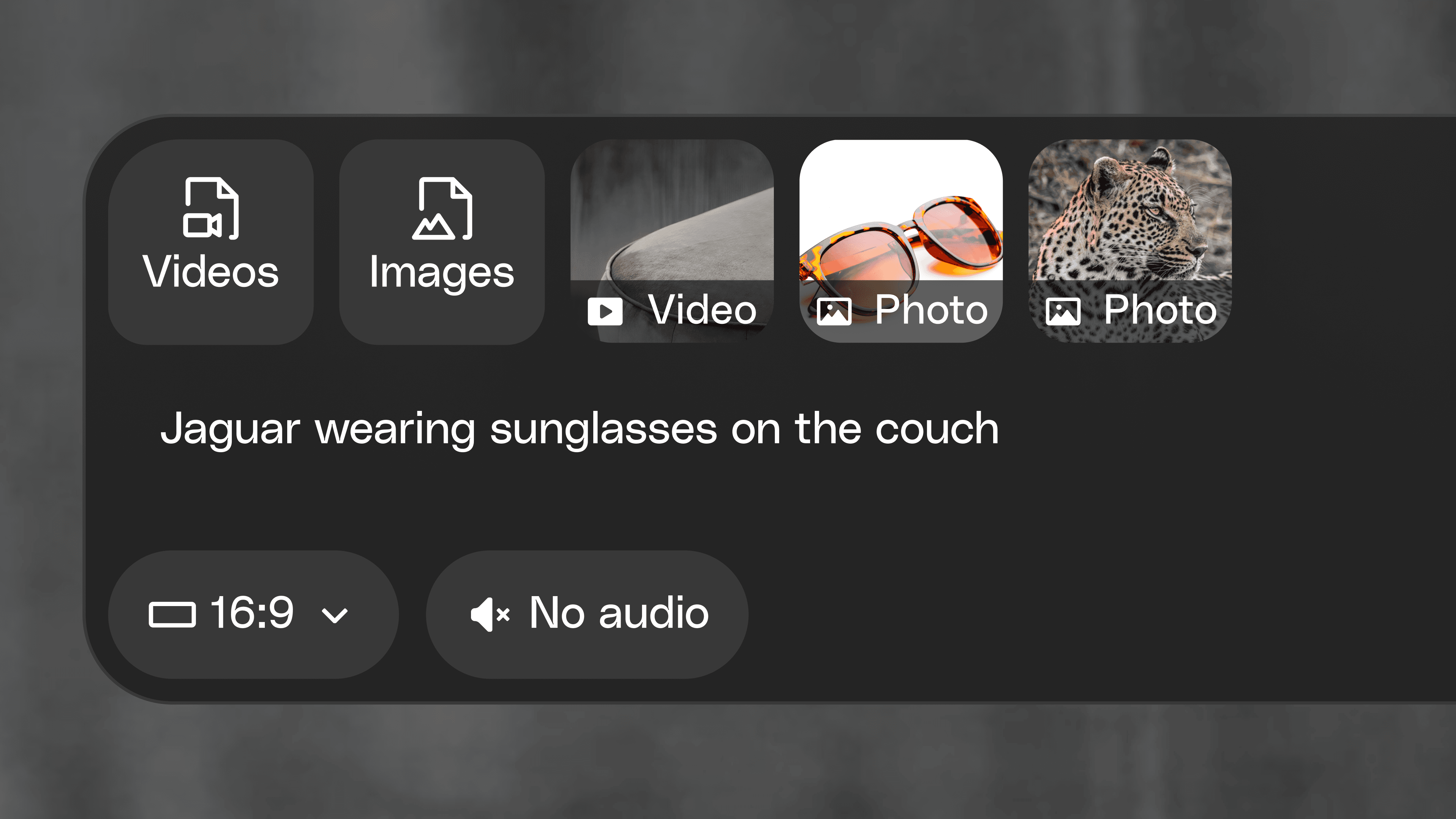
Envato Video Generator lets you upload up to 5 images and 1 video alongside your prompt. Uploading multiple references gives the model more context about your subject, style, motion and overall creative direction—so your outputs are more consistent, more on-brief, and worth working with rather than starting over.
Looking for inspiration? Jump to Tips & Tricks Below
Why include visual context?
Images and video gives Video Generator more to go on than text alone. By showing the model what you mean, you can guide the final output with greater creative control and consistency.
Creative work often starts with a brief, a moodboard, or examples of what good looks like. Uploading images and video helps Video Generator work the same way, giving it the context it needs to generate results that are closer to your vision from the start.
Use images to define:
Characters and subjects
Products and objects
Styles and visual direction
Locations and environments
Use videos to define:
Motion and action
Camera movement
Timing and pacing
Environments and backgrounds
Overall feel and energy
Matched with a prompt that explains how these assets should be used can give the generator a better chance at matching your vision.
The more context you provide, the easier it is for Video Generator to create outputs that match what you have in mind.
How to use references
Open Video Generator
Upload up to 5 images and 1 video
Enter your prompt and describe how you’d like the images and video to influence the final result
Generate your video
You can combine images and video in a single generation to guide both the visual style and the motion of your final output.
Example
Include:
An image of an elephant
An image of sunglasses
An image showing the golden-hour visual style
A video of a beach with rolling waves
Prompt:
Create a cinematic video featuring the elephant wearing the sunglasses, emerging from the beach and rolling waves with warm golden-hour lighting from the reference image.
Adjust without starting over
References are non-destructive, meaning you can swap or remove images and videos without losing your prompt or other uploaded references.
Change your mind, try different combinations, and refine your direction without starting over.
Tips & Tricks
A few simple techniques can help you get more consistent results when using images and video.
Be specific about what each upload contributes
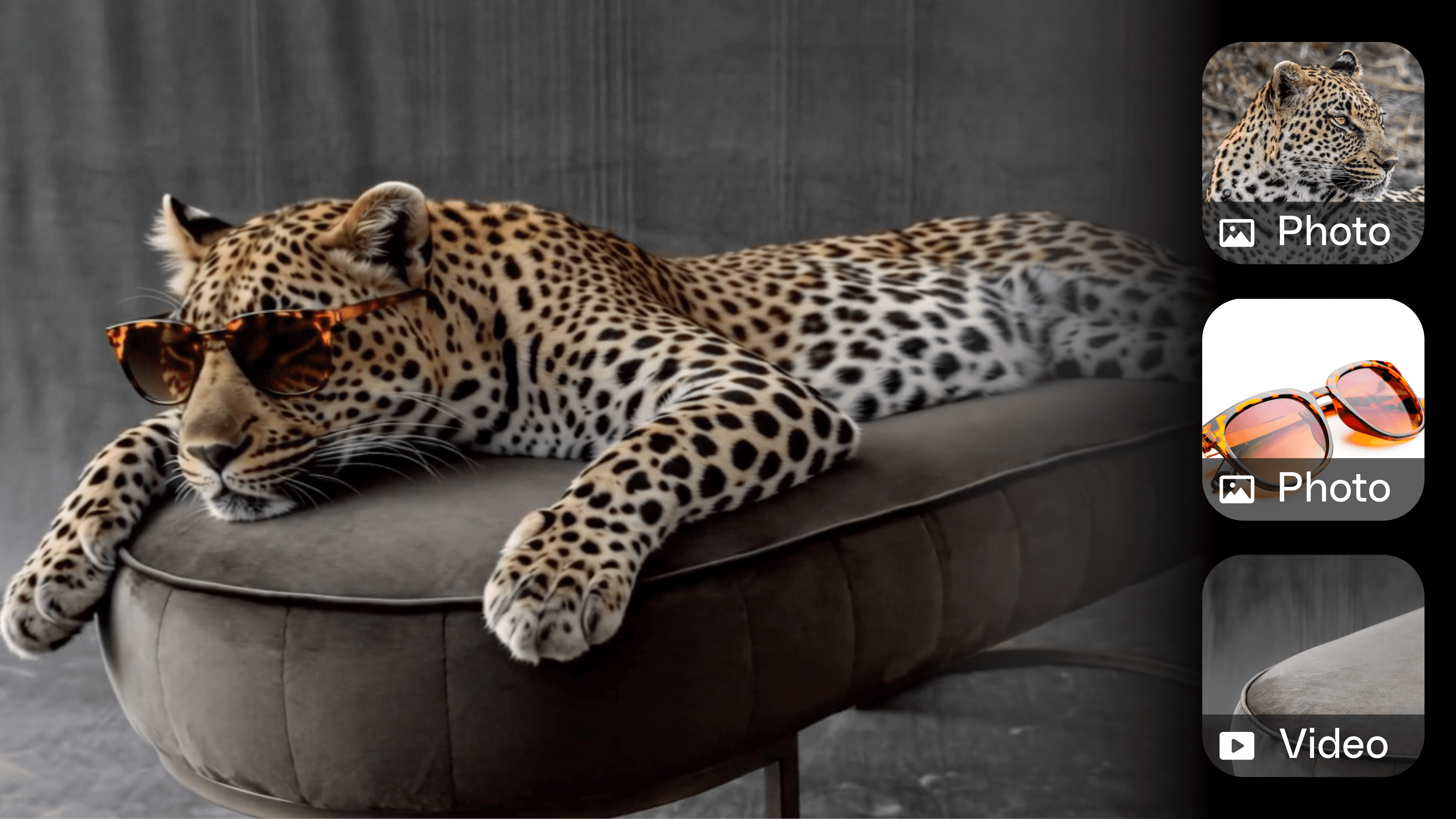
When you upload multiple references, mention them directly in your prompt to tell the model exactly what you do with each one. You can reference multiple inputs in a single prompt, so the more specific you are, the more consistent your output.
Vague prompt: Jaguar wearing glasses.
Clearer prompt: Place the jaguar on the bench and put the sunglasses on the jaguar. Use the camera movement from the referenced bench video.
Experiment with combinations
Try swapping images or video while keeping the same prompt to explore different creative directions.
Because uploads can be changed without losing your prompt, it's easy to iterate and refine your results until they're closer to your vision.
Turn on sound for a fuller result
If you want the model to generate audio — ambient sound, music, dialogue, or sound effects — flip the sound toggle on the prompt card before you generate.

Sound works best when your prompt describes what you want to hear, not just what you want to see.
Clear prompt: A wide shot of a rainy forest at dawn. Birds call softly in the distance, with the steady patter of rain on leaves.
Sound is off by default to keep generations fast and predictable, so flip it on intentionally when the soundtrack matters.
Ready to try it?
Include a few images, and a video to see how much further visual context can take your next generation.