LEARN
5 min read
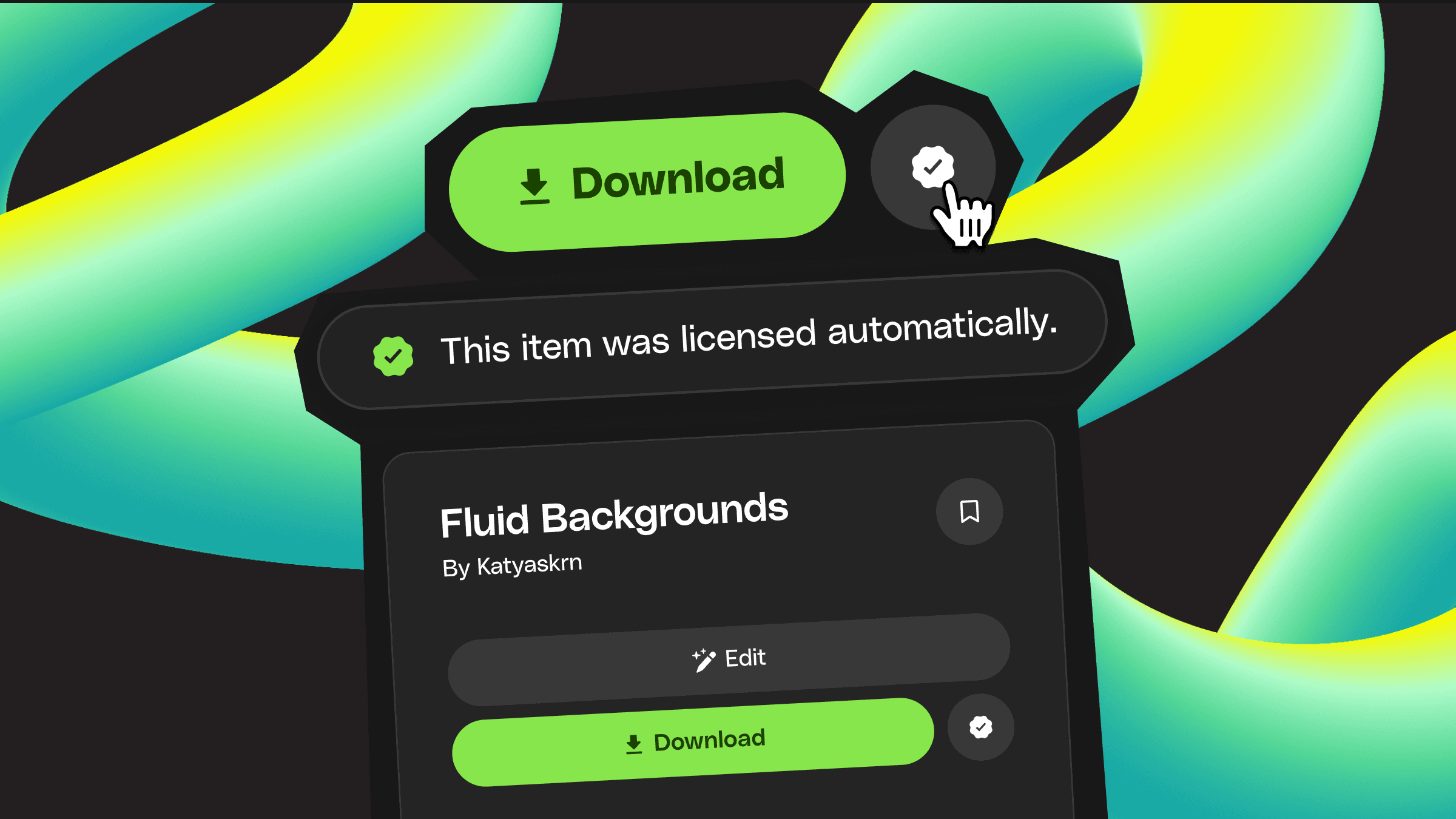
Licensing on Envato is built to stay out of your way. Every asset you download is automatically covered for commercial use — no manual assignment or project registration required.
Licensing on Envato is designed to be frictionless. Every download from the creative stock library comes with a valid commercial license by default — no project registration, no extra steps, no additional clicks. Whether you’re downloading templates, stock footage, or music, the process works the same way across the board.
How it works
Every download includes a valid commercial license by default. The moment you click that download button, you’re covered. No project name required, no workspace assignment, no extra clicks. The license is created instantly, and you’re ready to use the asset in personal, client, or commercial work.
Your commercial rights don’t depend on registering a specific project name. Download an asset and you’re licensed — or create a new license anytime from My Downloads or the item page.
If you prefer to organize licenses by client or project, that option is available. You can assign downloads to specific projects whenever you want, either during download or afterward, and the process is extremely simple. It’s optional, and purely for your own organizational purposes.
If you’d prefer to be prompted to name each license right after downloading, you can turn that on. Head to Preferences and change your licensing setting from “Never ask” to “Always ask,” and you’ll see the naming prompt every time you download. There’s also a “Remember last choice” option, which keeps assigning downloads to your most recent license name until you change it. Handy when you’re downloading a bunch of assets for the same project. You can access these settings from your Preferences page, or click “License preferences” in the popup that appears after any download.
One license per project, broad commercial rights
Your Envato Elements license comes with the same straightforward terms across all stock asset types. You get broad commercial rights that cover most creative use cases: in-house work, client projects, advertising, marketing materials, and end products for sale where you’ve added meaningful value.
The usual restrictions apply. You can’t resell or redistribute items as-is, use them for on-demand or print-on-demand merchandise services, or use music items in broadcast presentations. But for the vast majority of creative work, you’re covered the moment you download.
One note: if you’re using Envato’s AI tools like Image Generator, Video Generator, or Music Generator, those outputs are covered by separate terms with some additional restrictions. See our AI Product Terms for details.
A note for YouTube creators
If you're using Envato music in YouTube videos, you might occasionally receive a Content ID claim. This is normal — it just means the track is registered in YouTube's system, not that you've done anything wrong.
For most tracks, Claim Clear handles this automatically. You can filter for Claim Clear-ready music when browsing, safelist your YouTube channel so future uploads are cleared automatically, or paste a video URL directly into your Claim Clear dashboard to resolve claims instantly. It's included in your subscription.
For tracks not covered by Claim Clear, you can still clear claims manually through YouTube's dispute process using your Envato license certificate — download it from My Downloads and submit it with your dispute.
Either way, you're covered. The automatic license is a full commercial license, and it's all you need.
Managing and organizing your licenses
The automatic system handles licensing, but, as we alluded to earlier, you’re still in control of organization — if that’s your thing.
Each license covers a single use, so if you’re using an asset across multiple projects, you’ll need a separate license for each. You can create and label these anytime — helpful if you’re working with multiple clients or want to track which assets went into which end product.
There are four ways to create and manage licenses:
At download: Click Manage after downloading to create a license with a new or existing license name.
From your Downloads page: Select View licenses, then Create new license.
From the item page: Click Licenses, then Create new license.
From a Workspace: Downloads are automatically licensed to your Workspace name. To use a different name, click Manage and create a new license.
You can organize licenses whenever you need to, without affecting your commercial rights. Nothing requires re-downloading.
Bulk licensing with Workspaces
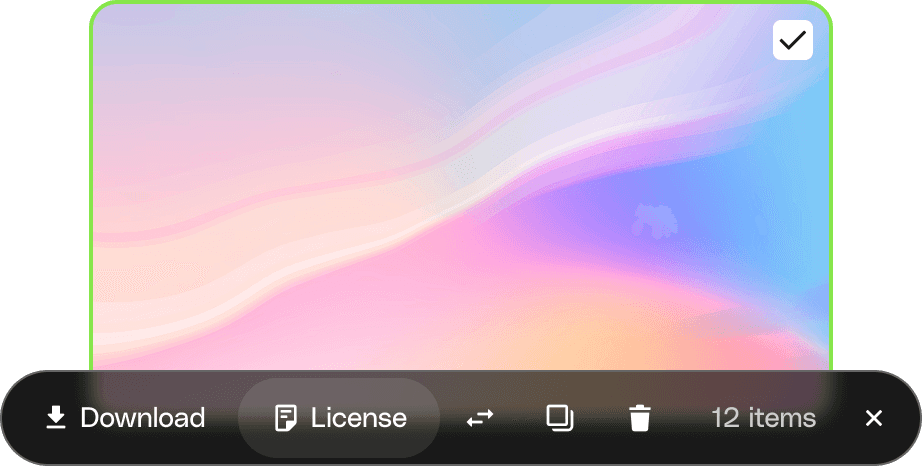
If you’re working on a project that involves multiple assets, Envato Workspaces can save you a lot of time. Save items to a Workspace as you browse, then when you’re ready, select multiple items at once (cmd+a to select all or shift+click to select a range), and download or license them all with the same license name in one go. You’ll get all the license certificates bundled in a single zip file. It’s a faster way to organize when you’re pulling together assets for a larger project.
Future-proof licensing
Assets you’ve used in completed projects during your active subscription remain licensed even if your subscription ends. You won’t be able to download new items or use assets in new or incomplete projects after unsubscribing, but existing work stays covered.